 DriveInstructor
Payments
Connect Stripe for payments and instructor payouts
Use Stripe to take student card payments, then enable Stripe Connect so instructors can link a Standard account and receive payouts from your school.
- 1
Open Stripe settings in DriveInstructor Pro
Sign in to the admin dashboard, open your profile menu in the top right, then choose Settings.
In the sidebar, expand Payment gateway and select Stripe. This is where you add API keys for student payments and a Connect Client ID for instructor payouts.
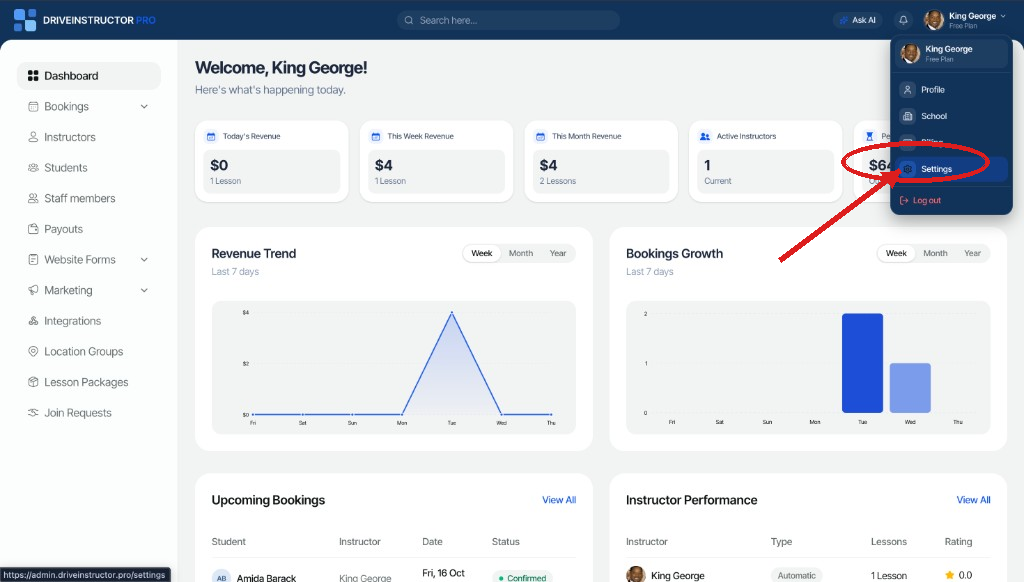
Dashboard → profile menu → Settings 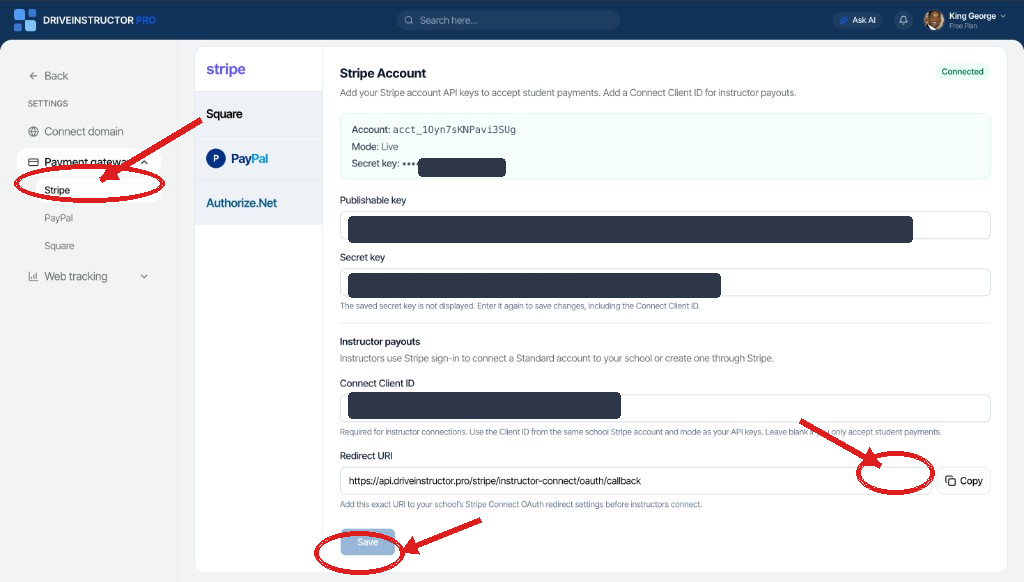
Settings → Payment gateway → Stripe - 2
Add your Stripe API keys for student payments
In the Stripe Dashboard, open Settings → Developers → API keys (or choose Manage API keys from API policies).
Copy the Publishable key and Secret key into the matching fields in DriveInstructor Pro, then click Save.
Use keys from the same mode you intend to run in. Start with Test mode until you are ready for real charges. After you save, the secret key is never shown again — the form only shows that a key is saved (for example, the last few characters).
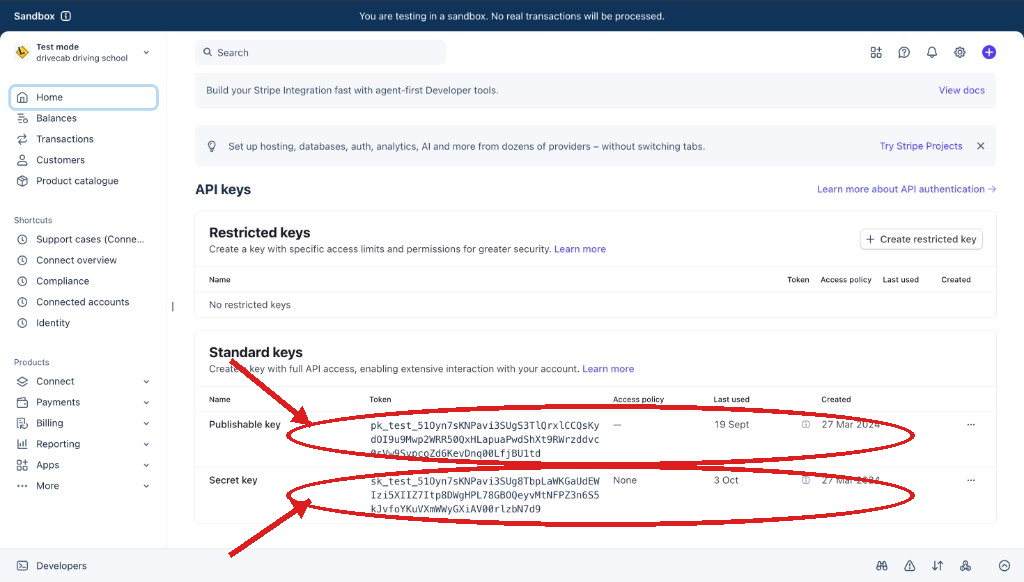
Stripe → Developers → API keys - 3
Enable Accounts v1 support
Still in Stripe under Settings → Developers → API policies, make sure Accounts v1 support is Enabled.
When this policy is on, your platform can create connected accounts so instructors can receive payouts.
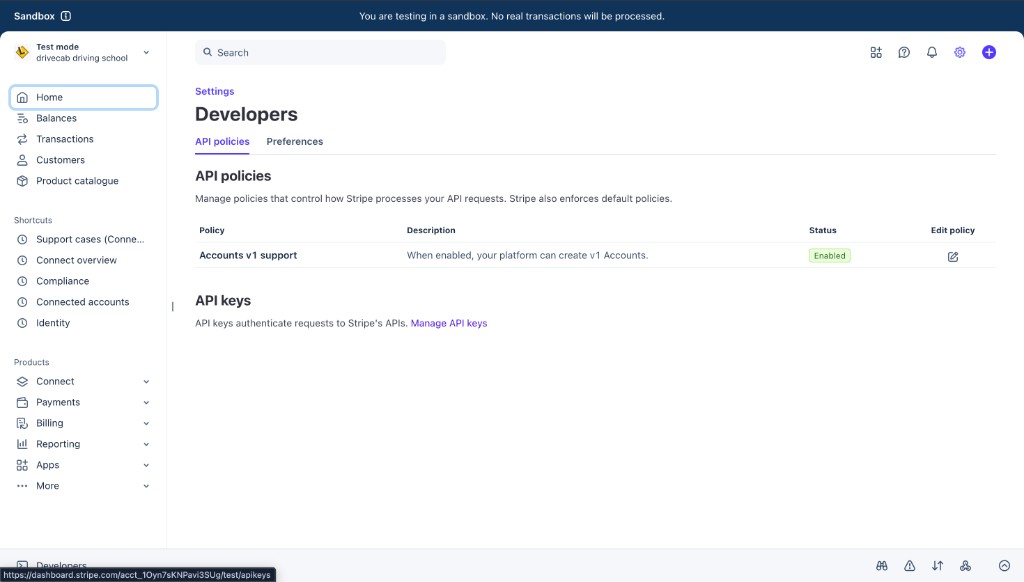
Stripe → Developers → API policies - 4
Set up Stripe Connect OAuth for instructor payouts
In the Stripe Dashboard, open Settings → Connect, then go to Onboarding options and open the OAuth tab.
Turn on OAuth for Stripe Dashboard accounts. Under Redirects, click + Add URI and paste this exact redirect URI from DriveInstructor Pro:
https://api.driveinstructor.pro/stripe/instructor-connect/oauth/callbackYou can copy the same URI from the Redirect URI field on the Stripe settings screen in DriveInstructor Pro. Add it in Stripe before instructors try to connect.
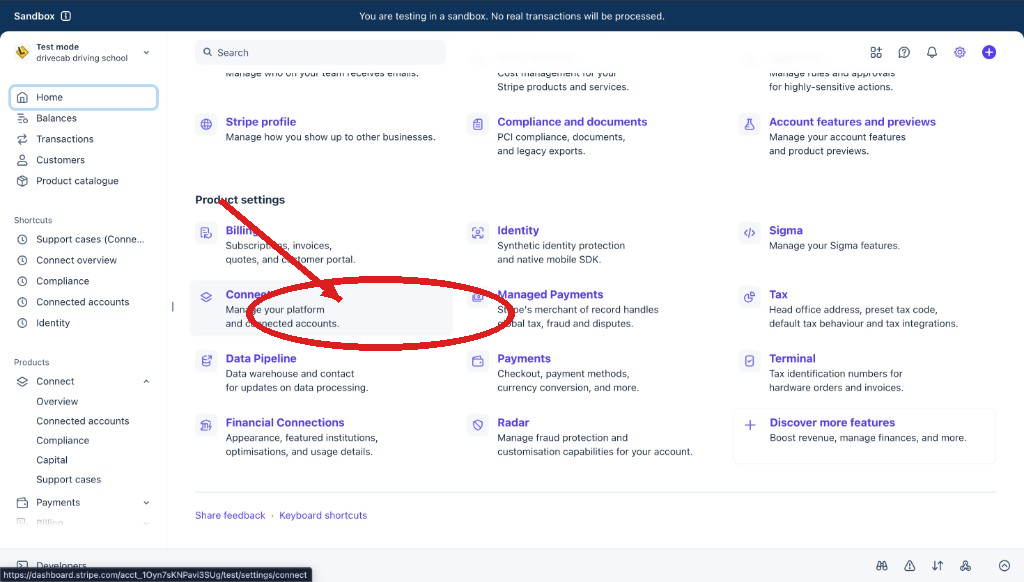
Stripe → Settings → Connect 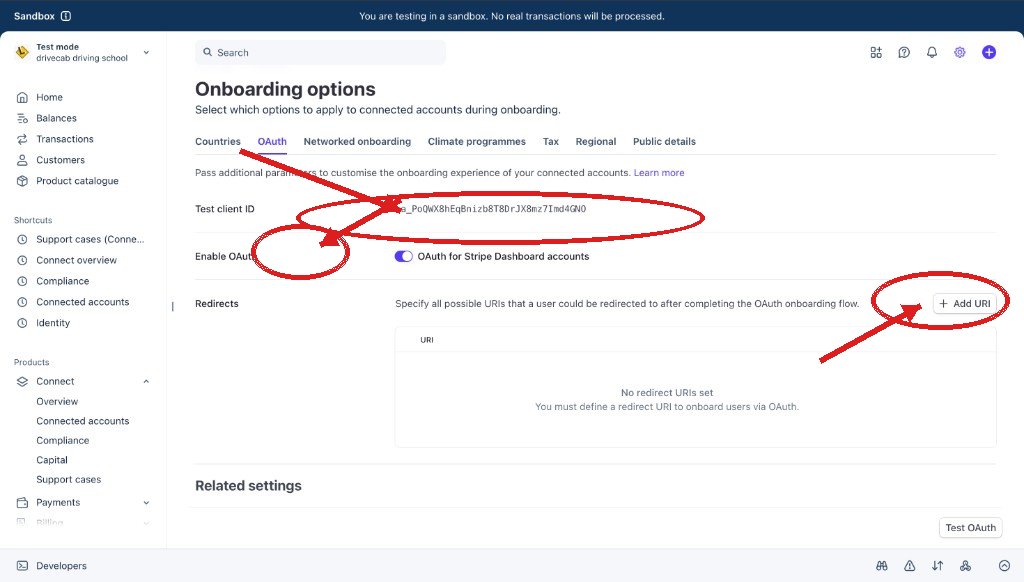
Connect → Onboarding options → OAuth 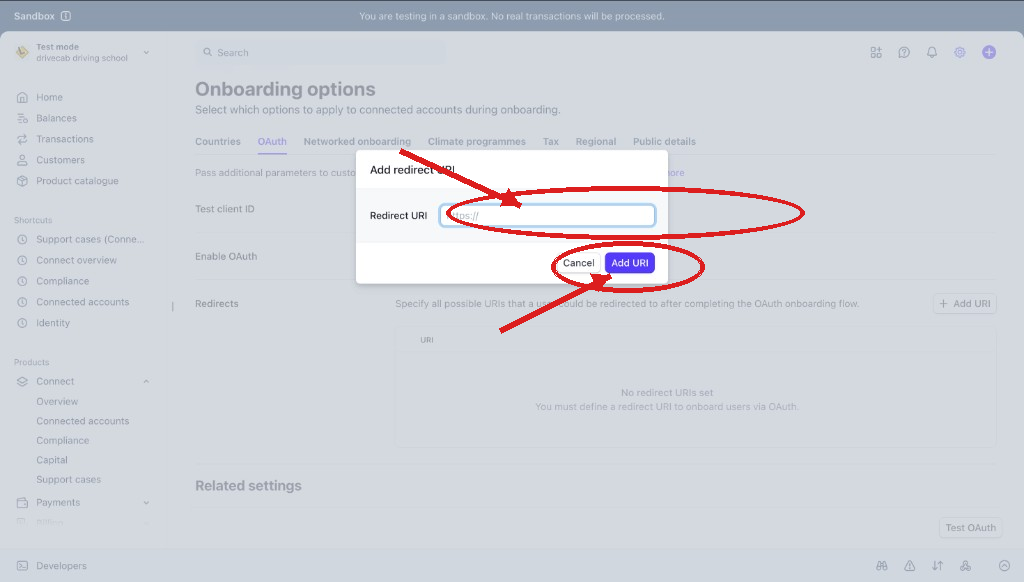
Add the DriveInstructor Pro redirect URI - 5
Paste the Connect Client ID and save
On the same Stripe OAuth page, copy the Client ID (shown as Test client ID or Live client ID depending on mode).
Paste it into Connect Client ID on the DriveInstructor Pro Stripe settings screen. Use the client ID from the same school Stripe account and the same mode as your API keys. Leave the field blank if you only want to accept student payments.
Enter your secret key again if the form asks for it, then click Save. Instructors can then use Stripe sign-in to connect a Standard account to your school for payouts.
Paste the Client ID, then Save
What happens next
- Students can pay for lessons and packages with card through your booking flows.
- Instructors connect their Stripe account from the school so completed lessons can be paid out.
- Keep currency, payout timing and gateway options aligned with how your school runs day to day.